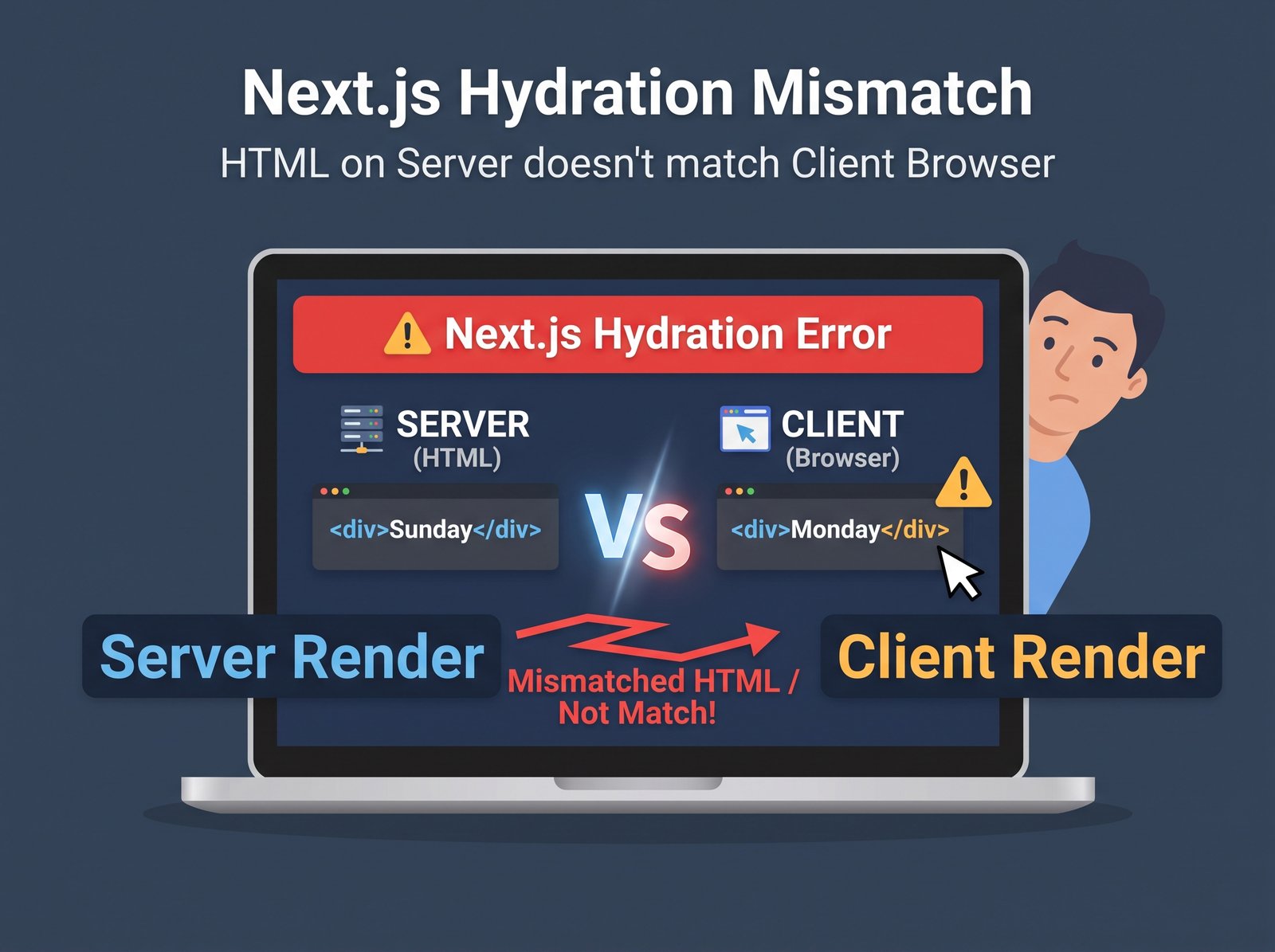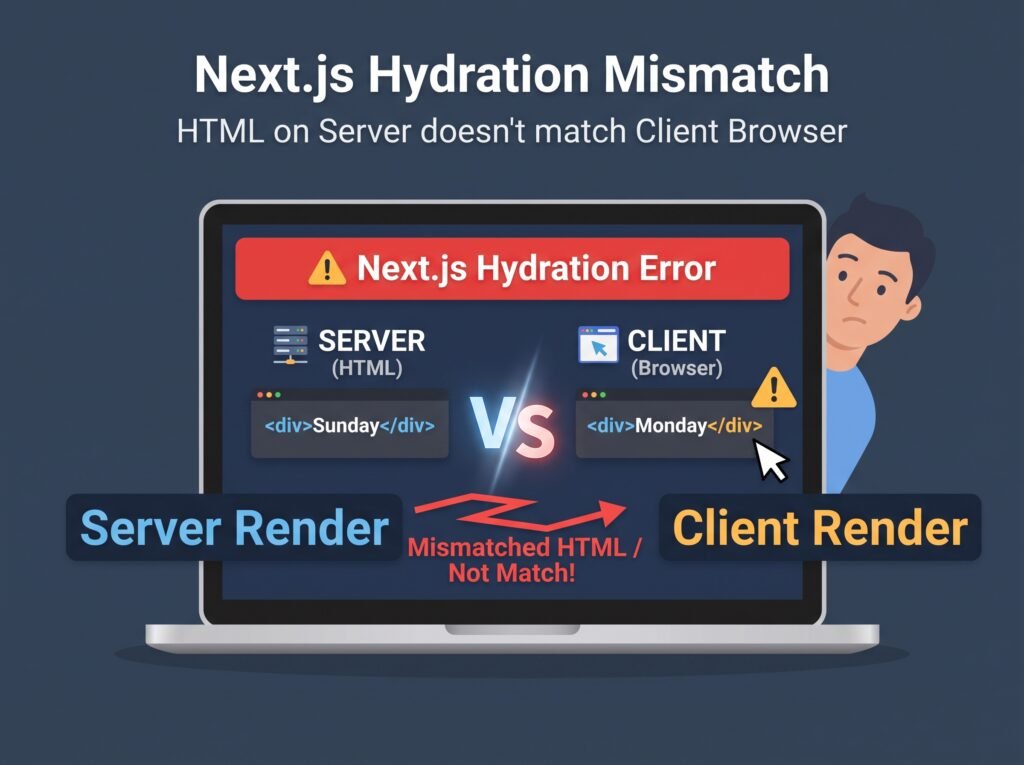
A Next.js hydration error occurs when the HTML generated on the server does not match the first render produced by React in the browser. Next.js can send HTML to the browser so users see content before JavaScript finishes loading. React then hydrates that HTML by attaching event handlers and making the page interactive. If the server-rendered markup and the browser’s initial React output differ, React may report a hydration mismatch.
Common causes include rendering browser-only values such as localStorage, using Date.now() or random numbers during rendering, invalid HTML nesting, different date or number formatting, browser extensions that modify the DOM, and third-party scripts. The correct fix is to identify what differs and make the server render and the browser’s first render consistent—not to hide every warning.
The official Next.js hydration error guide describes common causes and supported ways to address them.
What Is a Hydration Error in Next.js?
In a typical server-rendered Next.js page, the server generates HTML for the initial view. The browser displays that HTML and loads the JavaScript needed to make the interface interactive. React then hydrates the existing markup instead of treating the page as an entirely new client-rendered interface.
For hydration to work correctly, React expects the initial browser render to match the server-rendered HTML. For example, if the server renders Welcome, guest but the browser immediately renders Welcome, Alex based on a value stored in the browser, the two outputs differ.
Depending on the mismatch and React version, you may see a console warning, a hydration error, or React may regenerate part or all of the affected tree on the client. This can cause extra rendering work and, in some cases, visible flickering or incorrect initial content.
Hydration errors are not necessarily caused by Next.js itself. They often originate in a component, a dependency, a browser extension, or a script that changes the page before React hydrates it.
1. Using Browser-Only APIs During Rendering
One of the most common causes is accessing browser APIs such as window, document, localStorage, or navigator while generating the initial UI.
These APIs are available in the browser but not in the Node.js server environment. Direct access can cause a server-rendering exception. Even when code avoids the exception, using a browser-only value to produce different initial markup can trigger a mismatch.
Problematic example:
‘use client’;
export default function ThemeLabel() {
const theme = localStorage.getItem(‘theme’) || ‘light’;
return <p>Current theme: {theme}</p>;
}
This code reads localStorage during rendering. A Client Component can still be rendered on the server for the initial page load, so ‘use client’ does not make this access automatically safe.
Practical fix: Read browser-only state in an effect after the initial render.
‘use client’;
import { useEffect, useState } from ‘react’;
export default function ThemeLabel() {
const [theme, setTheme] = useState(‘light’);
useEffect(() => {
const savedTheme = localStorage.getItem(‘theme’);
if (savedTheme) {
setTheme(savedTheme);
}
}, []);
return <p>Current theme: {theme}</p>;
}
Both the server and the browser initially render Current theme: light. After hydration, the effect reads the saved preference and updates the UI if needed.
Choose the initial value carefully: this approach can briefly display the default theme before applying the saved one. If the preference must be reflected in the very first server-rendered response, consider storing it in a cookie and reading it on the server.
2. Rendering Dates, Random Numbers, or Other Changing Values
Functions such as Date.now() and Math.random() can produce different values on the server and browser. Locale-dependent formatting can also vary between environments.
For example:
export default function Timestamp() {
return <p>{new Date().toLocaleString()}</p>;
}
The server and browser might use different time zones, locales, or execution times. Even if both use the same locale, the displayed time can differ if rendering occurs across a time boundary.
Fix: Render a stable value initially, then calculate browser-specific output in an effect when appropriate.
‘use client’;
import { useEffect, useState } from ‘react’;
export default function Timestamp() {
const [time, setTime] = useState(null);
useEffect(() => {
setTime(new Date().toLocaleString());
}, []);
return <p>{time ?? ‘Loading time…’}</p>;
}
This keeps the initial markup consistent. For content that must be visible immediately, format dates using an explicitly chosen locale and time zone on the server and use the same settings on the client. For live clocks or countdowns, avoid making the first rendered value depend on a continuously changing timestamp.
The same principle applies to random IDs and randomized content: do not independently generate different values during the server and initial browser renders. Use stable data or an appropriate React ID-generation method, such as useId for IDs that need to match across server and client rendering.
3. Invalid HTML Nesting
Browsers automatically correct certain invalid HTML structures. React may expect a DOM structure different from the one the browser creates after parsing the server response, which can trigger hydration errors.
A common mistake is placing a paragraph inside another paragraph:
export default function Message() {
return (
<p>
Account status:
<p>Active</p>
</p>
);
}
A <p> element cannot contain another <p> element. Use valid markup instead:
export default function Message() {
return (
<div>
<p>Account status:</p>
<p>Active</p>
</div>
);
}
Check for other invalid combinations, such as placing a <div> inside a <p>, nesting interactive elements incorrectly, or putting table elements in the wrong structure.
When the component looks correct in JSX but hydration still fails, inspect the actual server HTML and the browser’s parsed DOM. Also review UI libraries that generate markup automatically, especially components that wrap children in their own elements.
Let’s Figure It Out.
Tell us what you’re working on and we’ll help you identify the right next step.
Talk to an Expert4. Server and Client Components Produce Different Initial Output
The Next.js App Router distinguishes between Server Components and Client Components. Server Components can access server-side resources and render on the server. Client Components support browser-side interactivity, but they may still contribute to the initial server-rendered HTML.
Adding ‘use client’ does not, by itself, fix a hydration mismatch. The component’s initial output must still be compatible with the HTML delivered by the server.
For example, this pattern can be problematic:
‘use client’;
export default function Greeting() {
const isBrowser = typeof window !== ‘undefined’;
return <h1>{isBrowser ? ‘Welcome back’ : ‘Welcome’}</h1>;
}
The server renders one heading while the browser’s first render produces another.
Instead, use the same initial output in both environments and update it after hydration if the browser-specific information is necessary. Alternatively, move the browser-dependent logic into a component that renders only on the client when server rendering is not required for that part of the interface.
Avoid converting entire pages to client-only rendering just to fix one mismatch. Doing so may sacrifice server-rendering benefits without addressing the underlying design issue.
5. Third-Party Scripts, Browser Extensions, and DOM Changes
Hydration errors can originate outside your component code. Browser extensions that inject elements into a page, translation tools, password managers, analytics scripts, or widgets that alter the DOM before React hydrates it can create differences.
To investigate:
- Open the page in a private or incognito window with extensions disabled where possible.
- Compare the behavior across browsers.
- Temporarily remove recently added scripts or widgets.
- Check whether a third-party component modifies the DOM before hydration.
- Reintroduce scripts one at a time to identify the trigger.
Use the supported Next.js Script component to manage third-party script loading where appropriate. However, changing a script’s loading strategy is not a universal fix: the important question is whether the script modifies markup that React expects to hydrate.
If a browser extension is responsible, your application may not need a code change. If your own script is responsible, adjust its timing or behavior so it does not mutate React-managed markup before hydration.
6. Fixing a Hydration Error in a Practical Debugging Workflow
When the cause is unclear, follow a consistent process rather than changing several components at once.
Step 1: Read the complete error message. Next.js and React often identify a component stack or provide a link to the relevant documentation. Start with the component closest to the reported mismatch.
Step 2: Reproduce the issue. Test a fresh page load, not only client-side navigation. Hydration problems can appear on a direct URL visit while remaining unnoticed during navigation within the app.
Step 3: Inspect the initial markup. Compare the server-rendered HTML with the browser’s initial output. Look for differing text, missing elements, unexpected attributes, or changes introduced before hydration.
Step 4: Search for unstable rendering inputs. Review window, localStorage, Date.now(), Math.random(), locale formatting, and conditions that produce different JSX on the server and browser.
Step 5: Check markup and dependencies. Validate HTML nesting and temporarily isolate third-party components or scripts. If the problem started after a package update, review the package’s release notes and reproduce the issue with a minimal component.
Step 6: Apply one targeted fix and retest. Test both a production build and the relevant development route. Development mode can expose additional diagnostics, so verify that the original problem is actually resolved rather than merely hidden.
This process is more reliable than suppressing the error immediately, because a mismatch can indicate a real user-facing bug.
7. When Should You Use suppressHydrationWarning?
React supports suppressHydrationWarning for specific elements whose content is expected to differ between server and client, such as a timestamp that cannot reasonably be identical. For example:
<time suppressHydrationWarning>
{new Date().toLocaleTimeString()}
</time>
Use this sparingly. It is a narrow escape hatch for unavoidable differences, not a way to repair mismatched application state or invalid markup. It suppresses a warning at the relevant level; it does not make different server and client output equivalent or guarantee that React will patch the mismatched text.
If the mismatch affects a theme selector, authentication status, product price, navigation, or other important UI, fix the underlying data flow instead. Also avoid disabling server rendering for an entire page unless the page genuinely requires browser-only rendering.
For further debugging context, see [Why Does My React Component Render Twice? Understanding Strict Mode and Fixing Side Effects]. Repeated rendering and hydration mismatches are different problems, but understanding React’s rendering behavior can help narrow down the cause.
Conclusion
A Next.js hydration error means React found a difference between the HTML rendered on the server and the initial UI generated in the browser. The most effective fixes are to keep initial output deterministic, defer browser-only reads until after hydration when suitable, correct invalid HTML nesting, standardize date formatting, and isolate scripts or dependencies that alter the DOM.
Start with the component stack and reproduce the problem on a direct page load. Then change one suspected cause at a time and verify the result. Use suppressHydrationWarning only for narrowly scoped, unavoidable differences—not as a substitute for consistent rendering.
8. Frequently Asked Questions
1. Why does my Next.js app show a hydration error even when the page looks correct?
A page can look correct while its initial HTML differs from React’s first browser render. For example, a timestamp, browser-stored preference, or locale-formatted date may produce different text without an obvious visual problem. Check the browser console and component stack, then compare the server output with the initial client render.
2. Does adding ‘use client’ fix hydration errors in Next.js?
No. ‘use client’ marks a component as a Client Component, enabling client-side features such as state and effects, but Client Components can still be prerendered on the server. Their initial browser output must match the server-rendered HTML. Move browser-dependent reads into useEffect when appropriate, or use a client-only rendering strategy for components that genuinely require the browser.
3. How do I fix a hydration error caused by localStorage?
Avoid reading localStorage directly during the initial render. Initialize the component with a stable default value, then read the stored value inside useEffect and update the state. If the saved value must be reflected in the initial server response, consider using a cookie that the server can read.
4. Can suppressHydrationWarning permanently fix a Next.js hydration error?
It only suppresses a warning for a narrowly scoped, intentional mismatch. It does not correct the underlying difference, and React does not patch mismatched text content when this escape hatch is used. Fix inconsistent data or rendering logic whenever possible; reserve suppression for unavoidable differences such as certain timestamps.
5. Why does my Next.js hydration error happen only in production?
Production and development can differ in timing, optimization, script execution, and how pages are accessed. A production-only mismatch may also involve a CDN or HTML optimization feature modifying the response, or a third-party script changing the DOM. Reproduce the issue with a production build, inspect the rendered HTML, and temporarily disable suspected scripts or HTML transformations to isolate the cause.
6. Can browser extensions cause hydration errors in Next.js?
Yes. Some extensions modify page content or insert elements before React hydrates the page. Test the URL in a private browsing window with extensions disabled, or use a clean browser profile. If the error disappears, investigate browser extensions before changing your application code.
Let’s Talk About Your Business
Not sure which approach is right for your business? Get a free consultation with our team.
Get Free Consultation